Showing posts with label Weblogic. Show all posts

Sunday, September 15, 2013

Working With Weblogic JMS Bridge

Weblogic messaging bride is a type of forwarding mechanism for JMS messages which can be used to transfer messages between two different domains of weblogic server. Basically the bridge has a Source Destination and a Target Destination which used along with JMS adapter helps to send the messages from one place to other. In this blog post have captured some of the configuration steps for JMS bridge to work:

1. Create a persistent store 
In Admin console; Click Lock and Edit and Under Persistent Stores ; Select New ; Create  FileStore
Name the store and target it to a specific server and finally activate the changes.


2. Create a JMS Server
In Admin console ; Click Lock and Edit and Under JMS Servers ; Select New
Set a name and select the corresponding FileStore and set the target to a specific server and after finishing, finally activate the changes

3. Create JMS Module
In Admin console ; Click Lock and Edit and Under JMS Servers  ; Select New
Click Next and Target it to the Servers and again click next. In the below page select the Check Box and click finish.


Click on the JMSModule and navigate to the Subdeployments page and click on New. Select a name and also target it to the JMS servers created earlier.

4. Create Connection Factory


Provide Name and JNDI name leaving rest fields as default and in next page click on Advanced targeting and select the subdeployment created earlier


5. Create Queue
Next create a Distributed JMS queue providing name and JNDI and under Advanced targeting, select the subdeployment created. Once finished activate the changes.


6. Create JMS Bridge Destinations
First create the source bridge destination.
In Admin console ; Click Lock and Edit and Under JMS Bridge Destinations ; Select New 
Provide the below details:
Connection URL: t3://source hostname:port/
Connection Factory JNDI Name: 
Destination JNDI Name: 

Click on OK and then click on source bridge destination name and ensure that the Weblogic credentials are correctly set there. This would be source server/domain credentials from where messages will be read.

Similar fashion create a target bridge destination and provide corresponding details.

NOTE: If weblogic is installed on a clustered server, the Connection URL format will be:
t3://node1 hostname:port,node2 hostname:port

Once done activate changes.

7. Create JMS Bridge
In Admin console ;Click Lock & Edit and Under Bridges ; Select New.
Provide name, select the corresponding source and target JMS destinations and finally click on Finish.

If all configuration is correct, we should see the below status for the JMS bridge under Monitoring tab.


NOTE :
For the XA Adapter to work the following file has to be deployed to Weblogic with name
jms-xa-adp  from /MW_Home/wlserver_10. 3/server/lib/jms-xa-adp.rar
Else the JMS bridge may give an error  "WARN: Failed to find the source/target adapter "

Apart from the JMS bridge configuration, need to create the corresponding JNDI name under deployments which will be used at runtime and this should be have the correct Connection factory(created in step4) configured in it.

The same JNDI name configured above will be used at design time while configuring the JMS adapter in Jdeveloper. Also the target destination name (JMS queue created in step5) will be configured in JMS adapter.

Tuesday, April 9, 2013

SOA 11g: Managed server error "weblogic.messaging.kernel.KernelException"

Recently came across an issue where the Managed servers were failing with below error. Even though servers start and come to running mode, but the JMS queues are not showing up in admin console under JMS Servers->Monitoring -> Active Destinations


<Error> <JMS> <BEA-040123> <Failed to start JMS Server "JMS_DEV_SERVER1" due to weblogic.jms.common.JMSException: weblogic.messaging.kernel.KernelException: Ignoring 2PC record for sequence=4706 queue=57 because the element cannot be found.
weblogic.jms.common.JMSException: weblogic.messaging.kernel.KernelException: Ignoring 2PC record for sequence=4706 queue=57 because the element cannot be found
        at weblogic.jms.backend.BackEnd.open(BackEnd.java:1008)
        at weblogic.jms.deployer.BEAdminHandler.activate(BEAdminHandler.java:200)
        at weblogic.management.utils.GenericManagedService.activateDeployment(GenericManagedService.java:239)
        at weblogic.management.utils.GenericServiceManager.activateDeployment(GenericServiceManager.java:131)
        at weblogic.management.internal.DeploymentHandlerHome.invokeHandlers(DeploymentHandlerHome.java:632)
        Truncated. see log file for complete stacktrace

This issue was after effect of the JMS file persistence store hitting 100% space utilization. As a result of which it got corrupted and was causing the JMS servers to fail while starting/activating.

To workaround this error, go to the Persistence File Store location (local/Shared SAN storage) and rename the existing *.DAT files to _bkp (say). Then go ahead and restart the managed servers. Now servers should come up fine without any issues/errors.

Oracle Metalink Note 1473826.1 "FileStore getting corrupted and WLS is unable to initialize JMS leading to BEA-040123 " suggests applying a Weblogic patch for Bug13900234. I haven't tried applying this patch but if issue persists inspite of workaround you can try this option as well.

Saturday, April 6, 2013

Automating SOA 11g Admin tasks using WLST

WLST (Weblogic Scripting Tool) is a powerful feature for Weblogic administrators who want to automate most of their day to day operational tasks. This was initiated back in the BEA Weblogic 8.1 days for standalone weblogic server administration. And since Oracle SOA Suite 11g is now based on Weblogic server, this tool has become handy for SOA suite administrators.

There are lot of good learning materials available online for people getting started with WLST apart from the standard Oracle documentation. Few noteworthy ones are mentioned below. These links provide some nice examples with sample code which you can use based on your needs.

With this post I just wanted to give an overview on the different use cases where WLST can be used and how it eases lot of the operational tasks for SOA suite admins.

Common Use Cases 
  • Monitoring STUCK threads/Hogging threads 
  • JMS thread pool monitoring
  • Retiring/Activating SCA composites
  • Enabling/Disabling OSB proxy/business services
  • Deploying SCA/OSB code
  • Deploying/Updating other resources like JMS queues, JDBC datasources etc.
  • Pausing/Resuming consumption/production on JMS queues
  • Moving messages between JMS servers
  • Generating Thread dumps and sending email alerts.
The main thing about working with WLST is understanding of how to navigate the configuration/runtime management beans(MBeans) and how to change the MBean attribute values.


You can either directly connect to the WLST command prompt and execute the necessary commands after connecting to the runtime environment. An example shown below for retiring a SCA

  cd mw_home/Oracle_SOA1/common/bin
  ./wlst.sh

  Initializing WebLogic Scripting Tool (WLST) ...
 
  Welcome to WebLogic Server Administration Scripting Shell
 
  Type help() for help on available commands
 
  wls:/offline> connect ("username","password","t3://admin_hostname:port")
  
  Connecting to t3://admin_hostname:port with userid username ...
  Successfully connected to Admin Server 'AdminServer' that 
  belongs to domain 'SOA_DOMAIN'.
 
  Warning: An insecure protocol was used to connect to the
  server. To ensure on-the-wire security, the SSL port or
  Admin port should be used instead.

  wls:/SOA_DOMAIN/serverConfig> sca_retireComposite("listen address",
  "username","password","sca name","sca version",partition="partition_name")

The other way to execute is by writing WLST scripts (.py extension) which are similar in structure to Python language and include a lot of Python as well as Jython (Java implementation of python) libraries. Next you write some shell script (.sh) which invokes these .py files and can schedule the same on the crontab at specific intervals.

The shell script (.sh) basically sets the environment (CLASSPATH and PATH) by calling setWLSEnv.sh and then running the WLST script by calling it as below.

   java weblogic.WLST xxxx.py

Wednesday, September 19, 2012

Capturing SOAP Headers/Envelope in SOA 11g

In order to manipulate SOAP Headers in SOA composites you can make use of the bpelx:inputHeaderVariable and bpelx:outputHeaderVariable attributes in invoke activity. However if you want to see the whole SOAP message (envelope with header, body and other parts) its not available out-of-the-box on the EM Console or in logs. In order to log/audit these web service conversations by a SOA composite you can follow below steps:

1. Attach a management policy to your webservice binding named oracle/log_policy


2. Redeploy your code and now when a webservice call is made, navigate to the below log directory to check for the SOAP messages
MW_HOME/user_projects/domains/domain_name/servers/managed_server_name/logs/owsm/msglogging/diagnostic.log
This log would contain both the SOAP request as well as response and you can view the entire SOAP envelope.

Monday, August 27, 2012

Creating Read Only User In Weblogic(SOA 11g)

In production environments, usually requirement is to change the default Weblogic password (to restrict it just to System Administrators) and create some kind of Read Only user for the Weblogic console. A colleague of mine documented these steps recently and hope these help anyone trying to perform this in QA/PROD environments.

1. Guest User Creation
Login to console as weblogic user and click on Security Realms -> myrealm ->Users and Groups


Click on New, enter Name & Password and then OK.


Click on the user which was created (guestuser) and below step ensures that we provide read only access
 to same. Click on Groups tab, choose Monitors group from left pane to right pane. Click on save. Once
    done logout from console (as weblogic) and login with new user to check access.


2. Weblogic Password Change
Login to console as weblogic user and click on Security Realms -> myrealm ->Users and Groups. Click on Weblogic and click on Passwords tab and update the new password and Save.


3. Node Manager Password Change
Login to console and click on Domain, click on Security ->  Advanced.


Update the password for the Node Manager user (weblogic) and click on Save.


4. Updating Weblogic and Node Manager passwords in Linux

     Login to fusion server using putty and navigate to the below directory.
·     Go to %domain_home%/config/nodemanager
·     Open nmpassword_properties
·     The file will hold encrypted values, replace all content with:
                  username=weblogic
                  password=new password
·     Restart the NodeManager
·     Check nmpassword_properties file for encrypted values
   Repeat same steps in its a multi node cluster environment.

 Changing the weblogic security file :
 Go to: %domain_home%/servers/{Managed Server}/security
 Open the boot.properties file
 Change the values to
              username=weblogic
              password=new password
  Perform same steps on other nodes and Restart Managed Servers.


Friday, August 10, 2012

Error while starting cluster: java.lang.RuntimeException: Failed to start Service "Cluster"

Can't start managed servers in a SOA cluster correctly, SOAInfra is in a failed state and see below errors in log file

Oracle Coherence GE 3.6.0.4  (thread=Cluster, member=n/a): Failure to join a cluster for 300 seconds; stopping cluster service.
Oracle Coherence GE 3.6.0.4  (thread=[ACTIVE] ExecuteThread: '2' for queue: 'weblogic.kernel.Default (self-tuning)', member=n/a): Error while starting cluster: java.lang.RuntimeException: Failed to start Service "Cluster" (ServiceState=SERVICE_STOPPED, STATE_ANNOUNCE)
        at com.tangosol.coherence.component.util.daemon.queueProcessor.Service.start(Service.CDB:38)
        at com.tangosol.coherence.component.util.daemon.queueProcessor.service.Grid.start(Grid.CDB:6)
        at com.tangosol.coherence.component.net.Cluster.onStart(Cluster.CDB:637)
        at com.tangosol.coherence.component.net.Cluster.start(Cluster.CDB:11)

This maybe caused because of another cluster in same subnet having the same cluster name. To fix this error and start servers correctly go to admin console and click on Managed Server->Server Startup tab. Under arguments field set the below for each server of the cluster.

Let's say the 2 node names are host1.com, host2.com respectively.
On server startup on Node1 set

-Dtangosol.coherence.wka1=host1.com -Dtangosol.coherence.wka2=host2.com -Dtangosol.coherence.localhost=host1.com -Xmanagement:ssl=false,authenticate=false,autodiscovery=true

On server startup of Node2 set

-Dtangosol.coherence.wka1=host1.com -Dtangosol.coherence.wka2=host2.com -Dtangosol.coherence.localhost=host2.com -Xmanagement:ssl=false,authenticate=false,autodiscovery=true

Once done, save changes and restart the managed servers. Now the error should be gone.

Wednesday, February 29, 2012

Plan.xml Not Getting Updated Across Nodes In SOA 11g Cluster

Recently came across an issue in SOA 11g cluster environment related to Plan.xml.

After creating a data source in Weblogic Admin console, when you update the DB adapter from deployments section, at the "Save Deployment Plan Assistant" screen the data gets stored in the Plan.xml (MW_HOME/ORACLE_SOA1/soa/connectors directory). In a SOA 11g Cluster (lets say 2 node env.) this Plan.xml file gets created on both the nodes first time. However any subsequent updates on the adapter like creation of new datasources or updation to existing ones dont get saved to both nodes. Only the Plan.xml on node where admin server runs gets updated.

This would cause datasource errors/missing JNDI name errors when the environment is load balanced and requests are routed to the 2nd node.

This is more of a cluster configuration issue. The Plan.xml should be kept in a location that is shared storage for all cluster nodes. If this hasn't been done while setting up the cluster then every time adapter updation happens, the Plan.xml only gets updated on Admin server node. In that case the solution is to manually copy the Plan.xml from admin server node to other nodes and restart the managed servers.

Thursday, December 1, 2011

Rotating *.out files in SOA 11g Weblogic Server

A very common issue in SOA 11g servers (Weblogic) is the inability to rotate *.out file using out of the box tools or scripts. We can rotate *.err and *.log files but not *.out files . As a result the server keeps hitting the 100% space utilization issue as the *.out file keeps grows to Gigabytes if not monitored correctly.

By default Weblogic doesn't have options to rotate the *.out file, so if we are running on Linux boxes, we can add the following snippet under /etc/logrotate.conf file and append a function to handle *.out files
(location of logs directory)/*.out {

copytruncate

rotate 5

size=10M

}
Basically the above function rotates the .out file for 5 times,once each file reaches the 10MB size and then it truncates the file.
For eg. *.out -> *.out.1 -> *.out.2 -> *.out.3 -> *.out.4 ->*.out.5 and finally *.out.5 is truncated and made to 0 bytes.

To schedule the above cleanup you can write a cron job as per your desired schedule which would call “/usr/sbin/logrotate /etc/logrotate.conf” command.

That's it !! No more 100% space utilization alerts or server crashing due to space being full.

Monday, October 17, 2011

SOA 11g: Weblogic Admin Server Down with Error "java.lang.NumberFormatException: null"

Weblogic Admin server isn't starting and below error is seen in log file:

<BEA-000386> Server subsystem failed. Reason: java.lang.NumberFormatException: null
java.lang.NumberFormatException: null
        at java.lang.Integer.parseInt(Integer.java:417)
        at java.lang.Integer.parseInt(Integer.java:499)
        at weblogic.ldap.EmbeddedLDAP.validateVDEDirectories(EmbeddedLDAP.java:1097)
        at weblogic.ldap.EmbeddedLDAP.start(EmbeddedLDAP.java:242)
        at weblogic.t3.srvr.SubsystemRequest.run(SubsystemRequest.java:64)
        at weblogic.work.ExecuteThread.execute(ExecuteThread.java:207)
        at weblogic.work.ExecuteThread.run(ExecuteThread.java:176)

This mostly happens when LDAP files are corrupted under the ../domain-name/server/AdminServer/data/ldap/ directory. A possible cause of corruption is when space on server is full. When the associated volume is full (100%) weblogic server will corrupt these files.

To fix the above error tried the below:
Remove the ../domain-name/server/AdminServer/data/ldap/conf/replicas.prop file and restart the Admin server. It should work now.

Thursday, September 22, 2011

SSO (SAML 1.1) Setup In SOA 11g

This post covers the steps required to configure SSO (SAML 1.1) with SOA 11g. Having Single Sign On(SSO) enabled helps the end users as they don't have to remember different username/password combinations for different applications. When tied with a LDAP provider (Like Microsoft Active Directory or Oracle Internet Directory), SSO helps in providing a robust authentication mechanism along with a seamless user experience.

SOA 11g and weblogic have made the SSO configuration very easy for administrators. Its all done on the Weblogic Admin console and doesnt require running any backend scripts or changing files on windows/linux. So lets take a look at some screenshots which show this easy setup.

Create a new Authentication provider (SAMLIdentity Asserter) and reorder to make sure it looks as below.

 Create a new Asserting party and specify properties as shown below

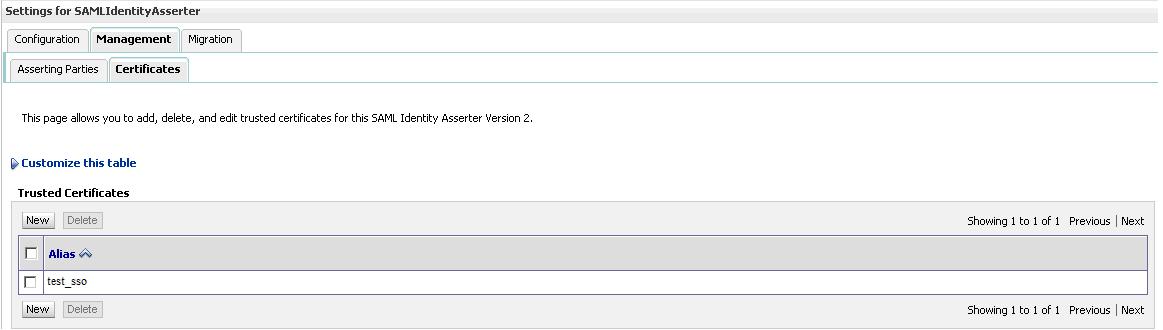
Create a new trusted certificate (same alias as above screenshot) and import the certifcate(.der) file.

      Finally under Managed Server -> Federation Services configure your SAML 1.1 Destination as shown
      below
That's it. Restart the Admin and Managed servers and you should be able to see the SSO redirection happening correctly. Basically whenever you hit your URL (bpm workspace in above screenshot) you should be redirected to your SSO site which should then pull up your user credentails from LDAP provider (lets says NT login) and authenticate you so that you dont have to login explicitly to your URL.

Incase you want to turn on Debug for SSO/SAML to troubleshoot issues with redirection or other errors, follow the below steps in your Weblogic Admin Console. Select Lock & Edit and click on your managed server and under the Debug tab, expand Weblogic->Security and select SAML and click on Enable and save. That's it. You should be able to see the Debug messages related to SSO/SAML in your Managed Server log file now.


Tuesday, August 30, 2011

LDAP Authentication (Active Directory) setup in SOA 11g

This is a short post explaining how to do AD (Active directory) setup in SOA 11g weblogic admin console. AD helps to authenticate users trying to access BPM Worklist or BPM Workspace.

In Weblogic Admin console go to Home >Security Realms >myrealm >Providers


Once done Click on New and provide Name (say ADProvider) and Type as ActiveDirectoryAuthenticator


You can Reorder the Authentication Providers and make sure ADProvider is the topmost one.


Provide the AD specific configuration details on below screen. You may get these details/credentials from your LDAP administrator.


Once all changes are done, save and Activate changes. Then restart the servers and test the LDAP authentication by logging into BPM Workspace or Worklist and ensure that only authenticated users are allowed to login.

Tuesday, August 16, 2011

SOA 11g: Managed server startup fails with "Persistency service internal error"

While starting SOA managed server ran into below error.

[soa_server1] [ERROR] [] [oracle.soa.services.common] [tid: [ACTIVE].ExecuteThread: '0' for queue: 'weblogic.kernel.Default (self-tuning)'] [userId: ] [APP: soa-infra] <.> Persistency service internal error.[[
Persistency service internal error.
Check the underlying exception and correct the error. If the error persists, contact Oracle Support Services.
 ORABPEL-9732
Persistency service internal error.
Check the underlying exception and correct the error. If the error persists, contact Oracle Support Services.
        at oracle.bpel.services.workflow.repos.PersistencyDriver.initNonTransactionDataSource(PersistencyDriver.java:271)
        at oracle.bpel.services.workflow.repos.PersistencyDriver.getNonTransactionConnection(PersistencyDriver.java:297)
...
Caused by: org.springframework.beans.factory.BeanCreationException: Error creating bean with name 'FabricConfigManager' defined in ServletContext resource [/WEB-INF/fabric-config.xml]: Cannot resolve reference to bean 'MediatorServiceEngine' while setting bean property 'configurables' with key [2]; nested exception is org.springframework.beans.factory.BeanCreationException: Error creating bean with name 'MediatorServiceEngine' defined in ServletContext resource [/WEB-INF/fabric-config-mediator.xml]: Cannot resolve reference to bean 'FaultRecoveryManager' while setting bean property 'faultRecoveryManager'; nested exception is org.springframework.beans.factory.BeanCreationException: Error creating bean with name 'FaultRecoveryManager' defined in ServletContext resource [/WEB-INF/fabric-config.xml]: Cannot resolve reference to bean 'BPELServiceEngine' while setting bean property 'serviceEngines' with key [1]; nested exception is org.springframework.beans.factory.BeanCreationException: Error creating bean with name 'BPELServiceEngine' defined in ServletContext resource [/WEB-INF/fabric-config-bpel.xml]: Invocation of init method failed; nested exception is java.lang.RuntimeException:
ORABPEL START-UP ERROR!!!!!!!!
OraBPEL run-time system failed to start due to exception:


Restart the SOA Infra database to get rid of this error. Once done restart the admin and managed servers and  the managed server should come up fine now.

Thursday, August 4, 2011

Using the JRockit Mission Control with SOA 11g

In one of my earlier posts I had covered about "VisualGC" which was a performance monitoring tool with SunJDK.
VisualGC: Performance Monitoring tool for Oracle SOA Suite

In this post I would like to cover a similar powerful tool called "JRockit Mission Control" which gets shipped along with JRockit JVM and can be used for performance monitoring and JVM profiling.

For enabling this tool, you first have to modify the setDomainEnv.sh file and add the java properties as mentioned below.

EXTRA_JAVA_PROPERTIES="${EXTRA_JAVA_PROPERTIES} -Xmanagement:ssl=false,authenticate=false,autodiscovery=true"
export EXTRA_JAVA_PROPERTIES

This enables the client machine to connect to the WLS server and pull the JVM stats. I have not specified the port argument above. By default it is 7091, incase a different port is to be used the same can be appended to the comma separated argument list above.

Now you can go to the Jrockit installation folder on your windows/linux machine and navigate to the bin folder where you can find the jrmc file. Run the same and after starting JRMC the following screen appears


 Create a new connection to your Weblogic Server
Next you can start monitoring the JVM/CPU usage and drill down into other JVM options in real time.

I will be covering deep dive details about JRMC in a later post. For now lets enjoy the cockpit styled UI :)

Tuesday, July 19, 2011

How to specify different heap settings for Weblogic Admin Server and Managed Server

It is a general requirement in Dev/QA/PROD environments to have different heap size settings for Admin Server and Managed Server. The usual practice for server start up is as below:

1. Startup the Managed Server from command line
   $nohup ./startWeblogic.sh &
2. Start the Node Manager from command line
  $nohup ./startNodeManager.sh &
3. Start Manager server from Admin console.

Now if we don't specify separate start up parameters for Admin & Managed server, both start with same heap size settings and that is an over kill for Admin server which doesn't require huge heap.

So to set the heap size of the managed server which is managed by NodeManager do the following:

1. You can specify your start up parameters in the "Arguments" field in the console so that they are used when you start the Managed server through the admin console.
2. Modify the nodemanager.properties file and set the StartScriptEnabled value to false. Without this the managed server won't take the changed heap size into effect after restart. It will still taking the values set in setDomainenv.sh script (same as admin server).

3. Restart Node Manager and Managed server for the new parameters to take affect.

Saturday, June 25, 2011

Installing SOA 11g Cluster on Weblogic

SOA 11g cluster setup on Weblogic is a lot easier than SOA 10g clustering on OC4J for sure..Tried to document the steps sequentially, will add screenshots later.

This is a 2 Node cluster with Admin server running on 1 node and Managed server running on both nodes.

1. Download all the installables from OTN for the SOA version 11.1.1.4.
       jrockit-jdk1.6.0_24-R28.1.3-4.0.1-linux-x64.bin
       wls1034_generic.jar
       ofm_rcu_linux_11.1.1.4.0_disk1_1of1.zip
       ofm_soa_generic_11.1.1.4.0_disk1_1of2.zip
       ofm_soa_generic_11.1.1.4.0_disk1_2of2.zip

2. Run the RCU and create the schemas for the SOA Cluster. (xxx_SOAINFRA, xxx_MDS etc..)

3. Install Jrockit on both nodes.

4. Install weblogic 10.3.4 on both nodes
        java -Xms1024M -Dspace.detection=false -jar wls1034_generic.jar

5. Install SOA 11.1.1.4 on both nodes.
       a. specify oraInventory path
       b. skip software updates
       c. specify installation directory
       d. specify the DB details

6. Create the domain on Node1. Run config.sh in $ORACLE_HOME/common/bin
      a. Under "Select Optional Configuration" select 
               Managed Servers, Clusters and Machines & 
               Deployments and Services
     b. Add the 2 managed server names and their listen ports
     c. Configure cluster
     d. Add managed servers to the cluster
     e. Configure Machines (Add the 2 server names under Unix Machine tab)
     f. Assign servers to machines.
     g. Complete the domain creation....

7. Pack the SOA domain from Node1 using below command
cd $WL_HOME/common/bin
./pack.sh -managed=true -domain={path to SOA domain} -template=soadomaintemplate.jar -template_name=soa_domain_template

8. Copy the jar file to Node2 and run the unpack command there.
cd $WL_HOME/common/bin
./unpack.sh -domain={path to SOA domain} -template=soadomaintemplate.jar

9. On each host create boot properties.
cd {path to SOA domain}
vi boot.poperties
username=weblogic
passsword=welcome1
cp boot.properties servers/AdminServer/security

10. Start Admin Server on host1 and disable the host name verification for admin and managed servers. (SSL tab->Advanced). Restart the Admin Server.

11. Start Node manager on both nodes to create initial script file. Then stop the node manager, edit the $WL_HOME/common/nodemanager/nodemanager.properties to set below and restart Node managers.
StartScriptEnabled=true
            StopScriptEnabled=true

12. Now you can login to the Admin console and start the managed servers.

13. Incase you have a Load balancer, configure the same to route request to the 2 nodes. The composites being deployed on the cluster can point to the LBR URL. (make sure end point URLs in composite.xml point to this). Also set the Server URL and Server Callback URL as shown in below screenshot.


14. Coherence comes as part of the SOA suite and SOA Clusters in 11g use coherence for communicating between nodes (similar to JGroups in 10g). Without coherence setup the deployment will not get distributed across all servers.

For unicast communication mode, we need additional coherence properties to be set. These have been explained in below Oracle doc.
http://download.oracle.com/docs/cd/E15523_01/core.1111/e12036/extend_soa.htm#CHDEAFJH

The startWeblogic.sh script on Node1 will have below properties set for Coherence to work.

EXTRA_JAVA_PROPERTIES="-Dtangosol.coherence.wka1=Node1 hostname -Dtangosol.coherence.wka2=Node2 hostname -Dtangosol.coherence.localhost=Node1 hostname"

Similarily for Node2...

That's it ! The WLS cluster should be ready to use now. 

Sunday, May 15, 2011

JMS Messages lost after server restart

Recently I came across an issue where JMS messages(unread) were lost from the queue when Weblogic server was restarted. This was kind of strange because Weblogic JMS provides a pretty stable solution around message delivery. Did some more analysis around this and below are the findings.

Weblogic JMS supports message retention in form of both Oracle AQ or an out-of-the-box DB persistence (file based persistence is default). In either case it should not lose message. The messages can be removed from the queues ONLY if:
a.      They are consumed by some process.
b.      If the messages gets expired, the queue handler will remove them
c.      If the delivery mode of messages coming from JMS Provider is Non-Persistent.

Which brings to the question of "What is JMSDeliveryMode ?" JMSDeliveryMode specifies PERSISTENT or NON_PERSISTENT messaging.
  • When a persistent message is sent, WebLogic JMS stores it in the JMS file or JDBC Store (database).
  • WebLogic JMS does not store non-persistent messages in the JMS database (prefix_wlstore). These messages are guaranteed to be delivered at least once unless there is a system failure, in which case messages may be lost.
You can check the JMSDeliverMode on incoming messages by looking at the JMS Header section.

<mes:WLJMSMessage xmlns:mes="http://www.bea.com/WLS/JMS/Message">
<mes:Header>
<mes:JMSMessageID>ID:xxxxxxx</mes:JMSMessageID>
<mes:JMSDeliveryMode>NON_PERSISTENT</mes:JMSDeliveryMode>
<mes:JMSExpiration>0</mes:JMSExpiration>
<mes:JMSPriority>4</mes:JMSPriority>
<mes:JMSRedelivered>false</mes:JMSRedelivered>
..
..
</mes:Header>
The JMS Provider should set this JMS Delivery Persistence to PERSISTENT mode and send it to consumer (JMS Queues in Fusion). No additional configuration is needed on Fusion– BY DEFAULT. Incase the messages are still being sent as NON-PERSISTENT then Weblogic provides a property for the Queue called "Delivery Mode Override" which can be used to override the delivery mode of incoming messages.


Tuesday, May 10, 2011

Weblogic Admin Server Unable to Start after ip change of host.

After changing the ip address of the App Server host (say from xx.xx.xx.xx to yy.yy.yy.yy), the weblogic admin server is unable to start. Following error message is seen in log file.

<Error> <Server> <AdminServer> <DynamicListenThread[Default]> <<WLS Kernel>> <> <> <1305039521705> <BEA-002606> <Unable to create a server socket for listening on channel "Default". The address xx.xx.xx.xx might be incorrect or another process is using port 7001: java.net.BindException: Cannot assign requested address.>

After ip change make sure you have changed references to the ip address in below places:
  • If you have used the IP address, instead of the hostname, as the listen address of the WebLogic Server Administration Server. Make sure you change it in config.xml under $MW_HOME/user_projects/domains/domain_name/config directory.
  • Also ensure that the /etc/hosts or C:\Windows\system32\drivers\etc\hosts file is modified to point to the new ip address.
Restart the Admin Server and it should start up successfully now.

Monday, August 30, 2010

SOA 11g : EM Console fails with HTTP 404 error ; JspServlet error

After restarting servers (admin and managed) found that EM console isn't coming up and it shows below error either on browser or Admin server log files:
"JspServlet error: Servlet unable to dispatch to the following requested page: java.io.FileNotFoundException: /targetauth/asLogin.jspx"

On further checking the directory targetauth was missing from <MW_HOME>/user_projects/domains/<domain_name>/servers/AdminServer/tmp/_WL_user/emcore/28c293 location. This directory has the asLogin.jspx file.

You can copy this directory from a different domain but that would still give errors like 
"JspServlet error: Servlet unable to dispatch to the following requested page: java.io.FileNotFoundException: MDS-00013: no metadata found for metadata object "/targetauth/asLogin.jspx" 

Solution :
1. Stop the Admin server
2. Rename <MW_HOME>/user_projects/domains/<domain_name>/servers/AdminServer/tmp/ directory to tmp-old
3. Restart the Admin server. The tmp directory will be recreated again.

Open EM Console.It should work now !

Tuesday, August 3, 2010

Weblogic domain creation error "Unable to invoke parse in InvokeStaticMethodTask"

While creating weblogic domain on linux server below error is encountered.

Steps:
export WLS_HOME=/opt/apps/Oracle/Middleware
export WLS_SERVER=/opt/apps/Oracle/Middleware/wlserver_10.3
export ORACLE_HOME=/opt/apps/Oracle/Middleware/Oracle_SOA1
export JAVA_HOME=/opt/apps/Java6/jdk1.6.0_20
export WLS_DOMAIN=/opt/apps/Oracle/Middleware/user_projects/domains
cd $ORACLE_HOME/common/bin
./config.sh


Here is the full stack trace of the error.

2010-08-02 09:56:28,142 ERROR [invokeStaticMethod] com.bea.plateng.wizard.silent.tasks.InvokeStaticMethodTask - Unable to invoke parse on class com.bea.plateng.plugin.PlugInExecutionPlanParser>
java.lang.reflect.InvocationTargetException
at sun.reflect.NativeMethodAccessorImpl.invoke0(Native Method)
at sun.reflect.NativeMethodAccessorImpl.invoke(NativeMethodAccessorImpl.java:39)
at sun.reflect.DelegatingMethodAccessorImpl.invoke(DelegatingMethodAccessorImpl.java:25)
at java.lang.reflect.Method.invoke(Method.java:597)
at com.bea.plateng.wizard.silent.tasks.InvokeStaticMethodTask.execute(InvokeStaticMethodTask.java:304)
at com.bea.plateng.wizard.silent.tasks.AbstractSilentTask.run(AbstractSilentTask.java:28)
at java.lang.Thread.run(Thread.java:619)
Caused by: java.lang.NullPointerException
at java.io.FileInputStream.<init>(FileInputStream.java:103)
at java.io.FileInputStream.<init>(FileInputStream.java:66)
at com.bea.plateng.plugin.PlugInExecutionPlanParser.parse(PlugInExecutionPlanParser.java:111)
at com.bea.plateng.plugin.PlugInExecutionPlanParser.parse(PlugInExecutionPlanParser.java:90)
... 7 more
2010-08-02 09:56:28,145 ERROR [invokeStaticMethod] com.bea.plateng.wizard.silent.tasks.InvokeStaticMethodTask - parameterValue 0 = <null>

The problem is the classpath for launching the configuration wizard.

/opt/apps/Oracle/Middleware/patch_wls1032/profiles/default/sys_manifest_classpat
h/weblogic_patch.jar:/opt/apps/Java6/jdk1.6.0_20/lib/tools.jar:/opt/apps/Oracle/
Middleware/utils/config/10.3.1.0/config-launch.jar
:.......

The source of this classpath entry is from $WLS_HOME/common/bin/commEnv.sh
The highlighted entry is invalid. It should point to 10.3 and not 10.3.1.0. Once this is changed the Configuration Wizard can be launched successfully for domain creation

Thursday, July 8, 2010

weblogic.transaction.internal.TimedOutException: Transaction timed out after 299 seconds

I have come across couple of scenarios where my BPEL processes(SOA 11g) fail with timeout errors. The corresponding error messages shown in the soa server diagnostic log of managed server is as follows:

JTA transaction is not present or the transaction is not in active state.

In SOA 10g (OC4J) we could fine tune the timeout settings by modifying transaction-timeout parameter in below files:
$Oracle_Home\j2ee\home\config\transaction-manager.xml
$Oracle_Home\j2ee\home\application-deployments\orabpel\ ejb_ob_engine\orion-ejb-jar.xml

However in SOA 11g (weblogic) this can be set via the Oracle WebLogic Administration Console.
Go to Deployments->soa-infra ->scroll down to EJBs and find "BPELEngineBean" ->Under configuration tab all the way down you find the transaction timeout - set to 300 seconds by default. You can change it here.


Once done Save, Update the soa-infra application and restart the Weblogic server.