Showing posts with label BAPI. Show all posts

Wednesday, June 9, 2010

Invoking SAP BAPIs from Oracle BPEL

The Oracle AS Adapter for SAP (SAP Adapter) exposes the SAP BAPIs/iDocs as a service via WSDL with JCA binding. The Application Explorer is used to configure the SAP Adapter. WSDL files can be created for both JCA Outbound (Request-Response service – BPEL invoke) and JCA Inbound (Event Notification – BPEL receive) Interactions and saved to a specific directory on server.The Jdeveloper based design-time wizard has a WSIF browser that is launched from the BPEL Partner Link activity to explore the WSDLs generated by the Adapter Application Explorer.

This post describes how to configure the SAP Adapter to generate WSDL out of a SAP BAPI and use it inside an Oracle BPEL process.

Application Explorer Configuration :

Create a new JCA project and this name will be later used while configuring connection factory in oc4j-ra.xml/ra.xml(for weblogic)


Provide the SAP System login credentials.


As you can see below once the connection to SAP has been established we can browse through the BOR(Business Object Repository) and select a particular BAPI Interface and generate WSDL from it for integration purpose.

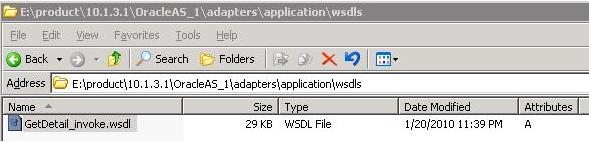


In 11g apart from the .wsdl file 2 more files are generated, one a .jca file and other .xsd (with schema for request-response) in $SOA_HOME/soa/thirdparty/ApplicationAdapters/wsdls directory.
Jdeveloper Configuration :
In Jdeveloper create a BPEL process and add a partner link. Using service explorer tab in the partner link configuration search for the WSDL generated from Application Explorer under adapters section. 

Note for SOA 11G, in order to access the BAPI WSDLs (or similar JCA adapter files)you need a third party adapter service which comes with Jdeveloper version 11.1.1.2.0 . So make sure you have this version of Jdev for development.
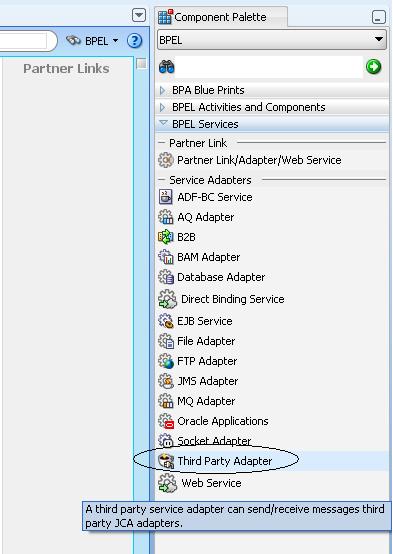


Also in 11G you need to copy the *.wsdl, *.jca and *.xsd files to the local machine for configuring the third party adapter service.
Once the above changes are done, before running the BPEL process you have to modify the oc4j-ra.xml/ra.xml(for weblogic) and make sure the property IWayConfig is set to the JCA Project name which we created earlier in Application Explorer. Bounce the BPEL/ WLS server and run the BPEL process.

Large SAP BAPIs failing with java.lang.OutOfMemoryError

OutOfMemory errors are commonly seen while processing large BAPIs, where XML data returned from the SAP Adapter is huge(eq. >10MB).

While processing the BPEL process either fails at the transform phase with “java.lang.OutOfMemoryError: Java heap space” Or the BPEL process doesn’t instantiate and you see errors like below in the console "java.lang.IllegalStateException: Commit called with no active transaction."


Common log files to be checked for these errors are :


1. OPMN : $ORACLE_HOME\opmn\logs\default_group~oc4j_soa~default_group~1.log

2. OC4J: $ORACLE_HOME\j2ee\OC4J\logs\oc4j\log.xml

3. Adapter : $ORACLE_HOME\adapters\application\config\targetname\logs\jca_xxx.log


Solution:

1. Increase the heap size of server. Modify the opmn.xml and increase the java start-parameters for oc4j_soa. Example: -–Xmx2048M –Xms1024M -XX:MaxPermSize=256M
While processing the BPEL process either fails at the transform phase with “java.lang.OutOfMemoryError: Java heap space” Or the BPEL process doesn’t instantiate and you see errors like below in the console "java.lang.IllegalStateException: Commit called with no active transaction."

Common log files to be checked for these errors are :

1. OPMN : $ORACLE_HOME\opmn\logs\default_group~oc4j_soa~default_group~1.log

2. OC4J: $ORACLE_HOME\j2ee\OC4J\logs\oc4j\log.xml

3. Adapter : $ORACLE_HOME\adapters\application\config\targetname\logs\jca_xxx.log

Solution: 1. Increase the heap size of server. Modify the opmn.xml and increase the java start-parameters for oc4j_soa. Example: -–Xmx2048M –Xms1024M -XX:MaxPermSize=256M

2. Adjust transaction-timeout settings. This can be done at 3 places : syncMaxWaitTime in BPEL Console, transaction-timeout parameter in $Oracle_Home\j2ee\home\config\transaction-manager.xml and transaction-timeout parameter in $Oracle_Home\j2ee\home\application-deployments\orabpel\ ejb_ob_engine\orion-ejb-jar.xml

3. Also set "Audit Trail Logging Level" from BPEL Console to "minimal".

4. Bounce the SOA server for changes to take effect and retest the issue.