Showing posts with label SOA10g. Show all posts

Tuesday, May 8, 2012

Session Management/Pooling While Integrating SOA With Siebel

Oracle SOA Integrations with Siebel require some kind of session management/pooling to be taken care of. In most common scenarios you maintain Siebel sessions from SOA layer by opening session, making subsequent calls to Siebel webservices and closing the session explicitly. There are other cases also where you may want do some session pool management within SOA by storing the session details (say custom DB table) and maintaining a count of the number of open sessions.

In this post I will cover the common approach of handling siebel sessions in Integration, it follows 3 basic steps:

1. Call a Siebel Session WSDL which supports some kind of ping method/operation and pass username, password and session type ("stateless") in SOAP Header to open a session on Siebel side. Siebel will respond back with a Session Token.
2. Use the session token along with session type ("stateless") while making subsequent call to Siebel wsdl for successfully connecting to the opened session.
3. Finally to close the session explicitly, send session token along with session type as "None".

A sample SOAP Header for request sent to Siebel is as below:
 <soap:header xmlns:wsa="http://www.w3.org/2005/08/addressing">
          <usernametoken>xxxxx</usernametoken>
          <passwordtext>xxxx</passwordtext>
          <sessiontype>Stateless</sessiontype>
 </soap:header>
A sample SOAP Header for response received from Siebel is as below:
<soap:header>
  <sessiontoken>xxxxxx</sessiontoken>
</soap:header>
Incase Siebel SessionToken expires before making subsequent calls, Siebel will respond back with some error message like Invalid Session Token or Session Timed Out or Session Token has expired. In these cases just reconnect to Siebel by making another call to the Ping method to generate a new session token. The Old session generated on Siebel side will eventually timeout and won't waste any resources as such.

That's it ! You should be good to create sessions and make successful calls to Siebel now.

Monday, March 19, 2012

Webcasts On SOA Integration Options for Oracle Ebusiness Suite

Came across these webcasts from Oracle Applications Technology Group regarding the various SOA Integration Options for Oracle Ebusiness Suite. I had already covered most of these options in an earlier post here http://myexperienceswithsoa.blogspot.com/2010/06/soa-integrations-with-oracle-ebusiness.html

These webcasts provide in-depth sight into the topic along with some demos. Check them out if you are pondering over how to integrate with Oracle Ebusiness Suite.

E-Business Suite R12 Service Oriented Architectures (SOA) Using the E-Business Suite Adapter
SOA Integration Options for E-Business Suite

NOTE: You will require OTN userid/password to login and access the content of the webcast.

Sunday, January 15, 2012

SOA 10g FTP Adapter Not Picking Files From FTP Server

This being my first post of 2012, I would like to wish all my readers a happy and prosperous new year. New year is time for resolutions :-) , apart from regular ones like "Will try to reduce weight" or "Try to keep my room clean" which never works out for me, I will definitely ensure that "I will share knowledge regularly".


New year, old issue. So decided to iron it out once and for all. SOA 10g FTP adapter wasn't picking files from remote FTP server after Jan 1st. Last file read was on Dec 31st. On further analysis found that the FTP adapter Control file had got corrupted.


The control file can be found under $OH/j2ee/home/fileftp/controlFiles/{processname~version}/xxxx/lastModifiedDate.txt


On checking the content of this file found below entry

#Sat Dec 31 23:21:55 CST 2011
lastModifiedTime=1356969420000

As you can see the lastModifiedTime shows as 1356969420000 (This is in milliseconds). This is Unix time or Epoch time and you can use the Epoch converter to convert it into corresponding timestamp.


After conversion it comes to:
GMT: Mon, 31 Dec 2012 15:57:00 GMT

This is where the problem lies. The lastModifiedTime has been set as 31st December 2012. As a result all files since Jan 1st 2012 are not being picked by FTP adapter because the adapter compares the timestamp on remote FTP server and only picks files which are greater than the lastModifiedTime.

What is epoch time?
The Unix epoch (or Unix time or POSIX time or Unix timestamp) is the number of seconds that have elapsed since January 1, 1970 (midnight UTC/GMT).

SOLUTION

Stop the SOA server, take backup of controlFiles directory, remove the control files and redeploy the code , Start SOA server. As a result new control file should come into picture and FTP process should pick files correctly.

Why the controlFile (lastModifiedDate.txt) got corrupted at first place during year change...that is something which I have to figure out. Looks like a bug with Oracle FTP adapter. Will update this post once I get a confirmation regarding same.

Wednesday, July 27, 2011

ORABPEL-05207 Error deploying BPEL archive:Premature end of file

Recently I came across an issue on a SOA 10g server where one of the BPEL processes wasn't loading after server restart. On checking the bpel domain.log file found the below error message
Error while loading process 'XXXX, rev '1.0': Error deploying BPEL archive.An error occurred while attempting to deploy the BPEL archive file "[ domain = default, process = XXXX, revision = 1.0, state = 0, lifecycle = 0 ]"; the exception reported is: Premature end of file.
ORABPEL-05207
Error deploying BPEL archive
An error occurred while attempting to deploy the BPEL archive file "[ domain = default, process = XXXX, revision = 1.0, state = 0, lifecycle = 0 ]"; the exception reported is: Premature end of file.

When Fusion server restart happens the BPEL archive files are loaded from the corresponding temp directories. Apparently the server had reached 100% space utilization and the subsequent server restart caused the bpel.xml for this process to get corrupted (0 KB as shown in highlighted section below). As a result this process was not getting loaded now and gave the error Premature end of file.

$pwd
/soa/OracleAS_1/bpel/domains/defaut/tmp/.bpel_XXXX_1.  0_9f89464f4c3e38.tmp
$ ls -lrt
..
-rw-r----- 1 soauser soauser   0   Jul 27 13:45 bpel.xml

To fix the issue had to redeploy the BPEL process. But the question was how did the server reach 100% space utilization. On digging further, I found that someone had turned on the DEBUG mode for loggers and left it that way for few days....this had generated 40-50 GB log files and filled up the space.

This is the highest mode of logging and should only be turned on if troubleshooting any issues and should be turned off or switched to a lower logging level immediately (especially on Production Servers).

Lessons learnt the hard way :)

Friday, May 13, 2011

Controlling the Size and Number of OPMN Debug logs generated

Incase you want to control the number and size of the files generated under SOA_HOME/opmn/logs directory, you can do that by adding few start up parameters in opmn.xml. Usually if these are not added, the debug files will grow over a period of time and will run out of space. (use du -csh * under logs directory to see space occupied by each sub-directory).

Usually the directory OC4J_SOA_xxxx which holds the *.out and *.err files consumes the most space. So to control that you can add below startup parameters for automatic recycling of these files.

<ias-component id="SOA" status="enabled">
            <process-type id="OC4J_SOA" module-id="OC4J" status="enabled">
               <module-data>
                  <category id="start-parameters">
                     <data id="java-options" value="-server -XX:MaxPermSize=2048M -ms4096M -mx8192M -XX:AppendRatio=3 -Djava.security.policy=$ORACLE_HOME/j2ee/OC4J_SOA/config/java2.policy -Djava.awt.headless=true -Dhttp.webdir.enable=false -Doc4j.userThreads=true -Doracle.mdb.fastUndeploy=60 -Doc4j.formauth.redirect=true -Djava.net.preferIPv4Stack=true -Dorabpel.home=/soa/OracleAS_1/bpel -Xbootclasspath^/p:/soa/OracleAS_1/bpel/lib/orabpel-boot.jar -Dhttp.proxySet=false -Doraesb.home=/soa/OracleAS_1/integration/esb -DHTTPClient.disableKeepAlives=true -Dhttp.session.debug=false -Dfile.encoding=UTF-8 -Dstdstream.filesize=10 -Dstdstream.filenumber=10"/>
                     <data id="oc4j-options" value="-out /soa/OracleAS_1/opmn/logs/OC4J_SOA.out -err /soa/OracleAS_1/opmn/logs/OC4J_SOA.err "/>
                  </category>

These 2 highlighted parameters control the size of each file as 10MB and number to 10. Older files are overwritten. Restart the server for changes to take affect.

Tuesday, April 26, 2011

Using SFTP with Oracle SOA

A common requirement in integration projects is to transfer files in/out of a system in a secured manner. FTP is the usual protocol for transferring files and if additional security is required then SFTP (Secured FTP) is the way to go. In this post I would cover some of the ways FTP adapter can be configured in SOA 10g and 11g to make use of SFTP.

For additional details on FTP adapter configuration you can refer to the Oracle link
http://download.oracle.com/docs/cd/B31017_01/integrate.1013/b28994/adptr_file.htm

SFTP supports couple of authentication mechanisms to ensure additional security on top of the FTP protocol.
  • Password authentication
  • Public Key authentication
In password authentication, the external site/vendor which hosts the FTP server shares a username/password combination which has to be configured on the SOA server. At runtime when a SFTP connection is attempted, the username/password is made use of for establishing the connection.

Similarly in Public key authentication, a private-public key pair is generated. The public key is shared with the external site/vendor which hosts the FTP server. At runtime when a SFTP connection is attempted, Fusion process will try to match the private key stored locally on SOA server with the public key on Remote FTP Server and do the authorization first before sending/posting the files.

The configuration information in either case is stored in SOA_HOME/j2ee/OC4J_SOA/application-deployments/default/FtpAdapter/oc4j-ra.xml  (SOA 10g) or MW_HOME/Oracle_SOA1/soa/connectors/FtpAdapter.rar/weblogic-ra.xml (SOA 11g).

For Password authentication below are the properties which you need to set (oc4j-ra.xml sample shown below)
<config-property name="host" value="XXXXX"/>
<config-property name="port" value="22"/>
<config-property name="username" value="xxxxx"/>
<config-property name="password" value="xxxxx"/>
<config-property name="useSftp" value="true"/>
<config-property name="authenticationType" value="password"/>

For Public Key authentication below are the properties which you need to set (weblogic-ra.xml sample shown below)
<wls:property>
<wls:name>host</wls:name>
<wls:value>XXXX</wls:value>
</wls:property>

<wls:property>
<wls:name>port</wls:name>
<wls:value>22</wls:value>
</wls:property>

<wls:property>
<wls:name>useSftp</wls:name>
<wls:value>true</wls:value>
</wls:property>

<wls:property>
<wls:name>authenticationType</wls:name>
<wls:value>publickey</wls:value>
</wls:property>

<wls:property>
<wls:name>privateKeyFile</wls:name>
<wls:value>path of private key file</wls:value>
</wls:property>

Apart from above configuration steps incase of Public Key authentication we can follow below additional steps to generate the private-public key pair and do corresponding setup for that.

1. On Remote FTP Server ensure that /etc/ssh/sshd_config has below parameters set
              RSA Authentication Yes
              PubKey Authentication Yes
2. On SOA server, generate the Public/Private Key pair using below command
            ssh -keygen –t  rsa
3. Once the public and private key are generated make a note of file path, file name etc.
4. Then copy the public key content to the Remote FTP Server . Login as the account with which the FTP has to be performed and put the public key content into file ~/.ssh/authorized_keys.
5. For modifying the weblogic-ra.xml in SOA 11g, extract the file from the FtpAdapter.rar file and after making changes repackage it using command (jar cvf FtpAdapter.rar .)

Incase you run into errors like below work with your network administrator to unblock the port 22 at firewall.
sftp xxxxx
Connecting to xxxxx...
ssh: connect to host xxxx port 22: Connection refused
Couldn't read packet: Connection reset by peer


Thats it ! Now you should be able to securely transfer files..

Monday, April 18, 2011

Configuring FTP Adapter in SOA 10g Cluster for High Availability

If you have a 2 Node cluster environment for SOA 10g, it is essential that the FTP adapter is configured in an Active/Passive manner. Otherwise you may run into situations where both nodes are trying to read the same file from the remote FTP server and this will lead to duplicate files entering the system.

The reason for duplicates is because FTP adapter on each node will maintain its own control file(locally) where it stores the last read time of the file. So if a file has already been read by Node1, there are chances that after server restart the same file may be picked by Node2 as well because the time maintained in control files is out-of-sync on both nodes.

There are couple of good articles published by Oracle for this specific configuration. The base idea of the solution is to have the control file on a shared folder which is accessible by both nodes.

Step1:
=====
Make sure the FTP adapters are configured in Singleton mode i.e BPEL clusterName value specified in $ORACLE_HOME/bpel/system/config/collaxa-config.xml should be different from the Adapters clusterGroupId property set inside bpel.xml of the BPEL project.

Also the Multicast host and port in jgroups-properties.xml file should be same on both nodes.

Step2:
=====
Once step1 has been ensured, you should create a folder on a shared file system. Either use an external share storage or you can create a shared directory on one node and use NFS share to mount it on the other node. Either ways make sure the folder has write permissions from both nodes. This folder will store the control files.

Next backup and edit the $ORACLE_HOME/bpel/system/service/config/pc.properties file on each node and set the below property oracle.tip.adapter.file.controldirpath to the shared folder name

Restart the servers for the change to take effect and test the scenario.

Tuesday, April 5, 2011

ORABPEL-05215 Error while deploying BPEL processes

Was working on some SOA 10g deployments recently and came across this error.

ORABPEL-05215
Error while loading process. The process domain encountered the following errors while loading the process "XXXXXX" (revision "1.0"): null.
If you have installed a patch to the server, please check that the bpelcClasspath domain property includes the patch classes.

Tried looking into the opmn logs and nothing additional was mentioned there. This was a simple BPEL process and didn't have any embedded java code. So definitely wasn't an issue with classpath settings.

On further checking found that the ORACLE_HOME and PATH used by my build scripts were pointing to Jdev 10.1.3.5 directory. However the SOA Suite version was 10.1.3.4. 

Downloading 10.1.3.4 Jdev and pointing ORACLE_HOME and PATH to this directory worked ! So when you encounter this error ensure that SOA Suite version matches your JDeveloper version.

Friday, December 17, 2010

SAP Adapter : Configuring Database Repository

SAP Adapter(JCA config) supports both file based as well as database based repository. I have had some bad experiences with file based repository where maintaining the repository.xml has been more or less a nightmare. I have covered some of these errors in earlier posts.

targets-for-mysap-no-targets-configured.html

We sometimes end up with duplicate repository.xml files or 0kb repository.xml files after server restarts. This causes most BPEL processes to fail with Adapter exceptions. So I finally decided to migrate all file based repositories to DB repositories (Not sure why I didn't do this earlier :-( ). Now Oracle doesn't provide any migration tools as such. But this isn't a huge effort and we just need to create the targets/channels afresh and it is a one-time task.

Anyways below mentioned is the list of steps to be followed to configure DB repository for SAP adapter.

1. Create a new schema user on database where you want the repository to reside. (Eg: saprepo_user/xxxxx)

2. Execute the iwse.ora SQL script on the machine where the database is installed. The iwse.ora SQL script is located in the following directory:
$MW_HOME\Oracle_SOA1\soa\thirdparty\ApplicationAdapters\etc

This script creates the required tables that are used to store the adapterconfiguration information in the database. These tables are used by Application Explorer and by adapters during design time and runtime. It is recommended that you use the same credentials to create the database repository and also in the ra.xml file for database user credentials.

3. Create the jcatransport.properties file and save it in the following directory:
$MW_HOME\Oracle_SOA1\soa\thirdparty\ApplicationAdapters\config\Config_Name

4. Enter values for iwafjca.repo.url, iwafjca.repo.user and iwafjca.repo.password fields in the newly created jcatransport.properties file, as shown in the following example:

iwafjca.repo.url=jdbc:oracle:thin:@dbhostname:port:sid
iwafjca.repo.user=saprepo_user
iwafjca.repo.password=xxxx

5. Navigate to the following directory:
$MW_HOME\Oracle_SOA1\soa\thirdparty\ApplicationAdapters\iwafjca.rar\META-INF

6. Open the ra.xml file and provide the JDBC connection information: (Same values as step3)
IWAYRepo_URL property.
IWAYRepo_User property.
IWAYRepo_Password property.

Save your changes to the ra.xml file.

7. Copy the ojdbc14.jar file to the directory $MW_HOME\Oracle_SOA1\soa\thirdparty\ApplicationAdapters\lib

8. Redeploy the iwafjca rar file from Admin console->deployments section and Restart Weblogic server.

9. Now open Application Explorer and create the SAP target again with similar details as before. You can then connect to the DB repository and check the af_config table to find your details stored there.

NOTE:
The above steps are for SOA 11g. For SOA 10g the directory structures will be different.
* jcatransport.properties file in following directory \adapters\application\config\
* copy ojdbc14.jar to \adapters\application\lib\
* Update oc4j-ra.xml (\j2ee\oc4j_soa\application-deployments\default\jca-app-adapter)

I haven't faced any issues so far after migrating from File to DB repository. Will definitely post if I find any discrepancies. Till then some relief :-)

Saturday, October 2, 2010

BPEL Console fails with "ORA-28001: the password has expired"

I recently came across an issue while accessing BPEL console, and was shown a SQL Exception "ORA-28001: the password has expired" on the BPEL console page. On checking the Oc4j_soa log files found the same error:

java.sql.SQLException: ORA-28001: the password has expired
at oracle.jdbc.driver.DatabaseError.throwSqlException(DatabaseError.java:138)
at oracle.jdbc.driver.T4CTTIoer.processError(T4CTTIoer.java:316)
...
...

On debugging further found that the orabpel and oraesb account passwords had EXPIRED on the Fusion DB. That was by design and implementation of the Oracle DEFAULT profile to which the users belonged. So to fix the issue the user accounts had to be unlocked/unexpired so that status showed as OPEN.

You can also check with your DBA team to see if the DEFAULT profile can be changed to allow unlimited days for a password and unlimited attempts at logging in (before account is locked).

Tuesday, August 3, 2010

VisualGC: Performance Monitoring tool for Oracle SOA Suite

Oracle Fusion Middleware supports various performance monitoring tools for helping us debug performance issues with SOA Suite. Performance bottlenecks can happen at many places in an integration solution. It can either take place at DB level, or the BPEL/ESB code level or the JVM/Middleware level. Identifying these bottlenecks is a daunting task and often requires analysis from multiple aspects. 

VisualGC tool from Sun which comes with jvmstat 3.0 (for JDK 1.5.0 and higher) is an excellent tool for monitoring JVM memory usage. This tool helps in investigating issues where the applications tends to slow down after a while/sees degraded performance over a period of time.

Links for downloading and using this tool on Linux environments is provided below:

VisualGC download link
Description of the tool 
Installation instructions on Linux/Solaris

Once the tool has been installed you can use the below commands to run it and monitor the performance:

I have unzipped the jvmstat3.0 zip file at /opt/apps/Java/ on my linux server and using JDK6.

$ export JVMSTAT_HOME=/opt/apps/Java/jvmstat 
$ export JAVA_HOME=/opt/apps/Java/jdk1.6.0_18 
$ export PATH=$JVMSTAT_HOME/bin:$JAVA_HOME/bin:$PATH 

$ jps 
5755 Server 
2885 Jps 
5930 Server 

jps command gives you the JVM ids which are required as input parameter for the visualgc command.

$ visualgc 5755
As can be seen from the adjacent image, the memory usage of different parts of the JVM are shown graphically. The PermGen, OldGen and YoungGen (Eden Space, Survivor0 and Survivor1) usage can be monitored. When you observe a flat line in the Eden Space (right hand graph window) then its a cause of concern and indicates memory leaks/deadlock scenarios and requires immediate investigation.


There are other performance monitoring tools which can be used with Oracle SOA Suite. The EM Console in SOA 11G has a nice Summary screen which shows several important performance tracking statistics. For details on few of these tools please check the below link.
Overview of Performance Tuning Tools in Oracle Fusion Middleware

Tuesday, July 6, 2010

Modifying BPEL preferences in 11G as compared to 10G

BPEL preferences help a lot in setting dynamic values in BPEL processes. The values for these preferences can be changed during deployment to different servers (DEV,QA, PROD) or post-deployment (where they take effect at runtime without having to redeploy code or restart servers). The way preference values can be modified in SOA 10G is different from the way it can be done in 11G . In this post we will take a look at this difference.

In BPEL 10G the preferences were added to bpel process by adding them into the bpel.xml file. Later these could be changed from BPEL console as shown below :
<preferences>
<property name="SOURCE_CONTACT">XXXXX</property>
<property name="TARGET_CONTACT">XXXXX</property>
</preferences>


In BPEL 11G the preferences are added to bpel process by adding them into the composite.xml file. Later these can be changed by changing their value from EM console as shown below:
<component name="customBPELProcess">
<implementation.bpel src="CustomBPELProcess.bpel"/>
<property name="bpel.preference.customPref">CustomPrefValue</property>
</component>
Open EM Console from http://adminserverhost:port/em

On the left hand navigation bar go to :

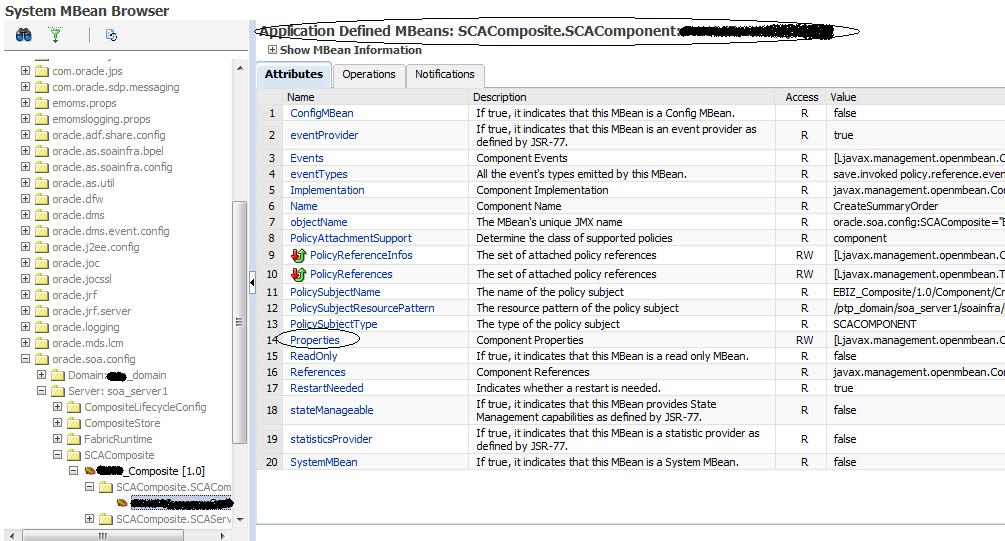
Farm_xxx_domain > Weblogic Domain > xxx_domain > right mouseclick and select ‘System MBean Browser’.

Navigate to Application Defined MBeans > oracle.soa.config > Server : soa_server1 > SCAComposite > your_project > SCAComposite.SCAComponent > your bpel_process. Select the Attribute ‘Properties’.

Change the value of your preference and click apply.Run the bpel again to see the new value get used in the process.